Early bird price for the first 100 buyers

Reclaim the space Xcode leaves behind.Keep everything you still need.

DevSweep finds old build data, simulators, device support files and package caches, tells you what each one is, and moves only what you tick to the Trash. Changed your mind? Put it back from History.

Pay once. No subscription, no account.

Made from the real app with sample data. No sound. In the film, DevSweep scans a sample Mac and finds up to 33.8 GB, a few items in Xcode build data are ticked and unticked, the review sheet lists what will move, and 14 items go to the Trash with Undo ready to put them back.

See where the space went.Then decide, item by item.

One honest number.Nothing hidden in it.

DevSweep measures Xcode's build data, simulators, device support, caches and old dependency folders side by side. The headline counts only what's safe to remove or rebuilds by itself. Anything that needs a second look is shown, but never counted and never ticked for you.
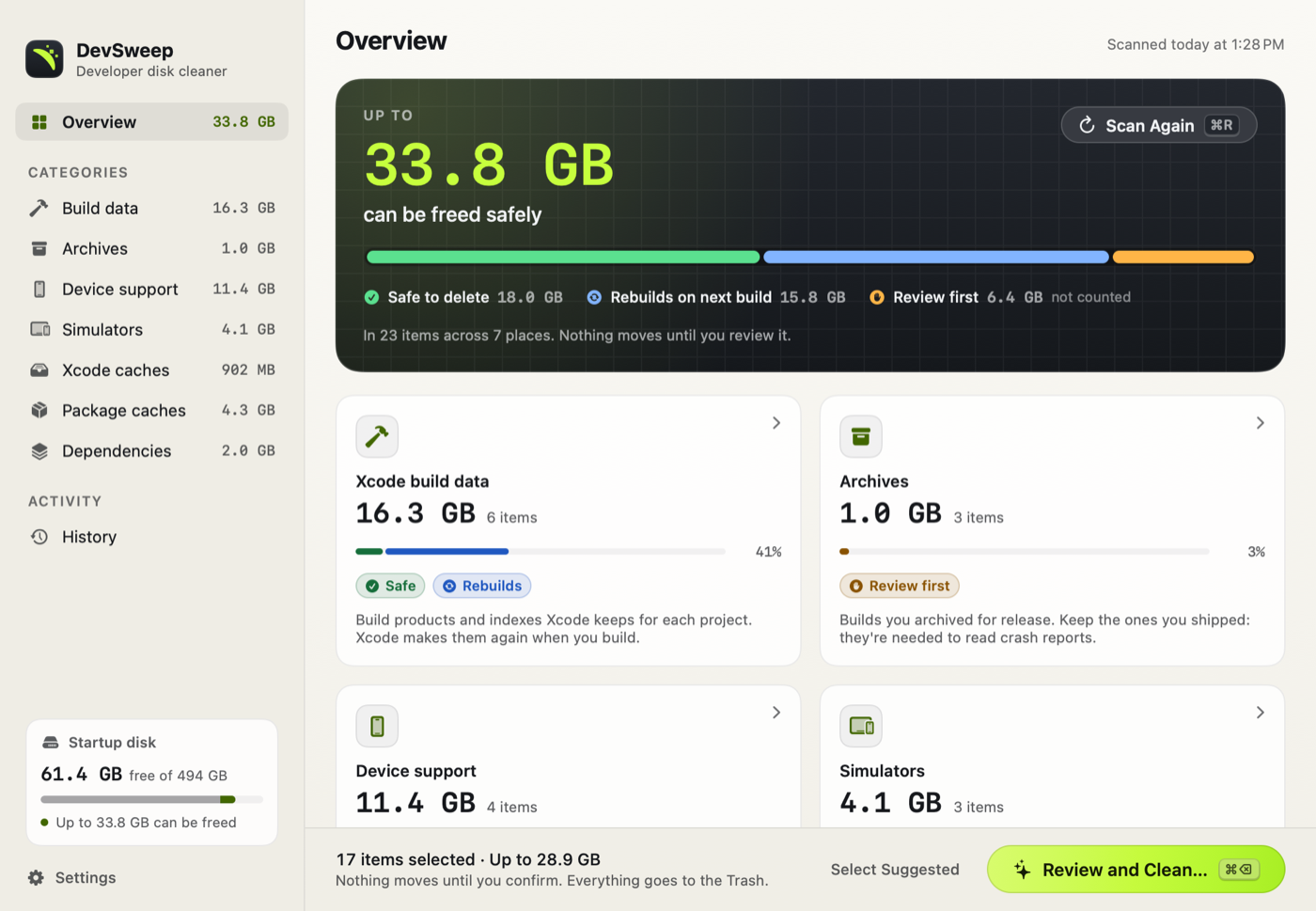
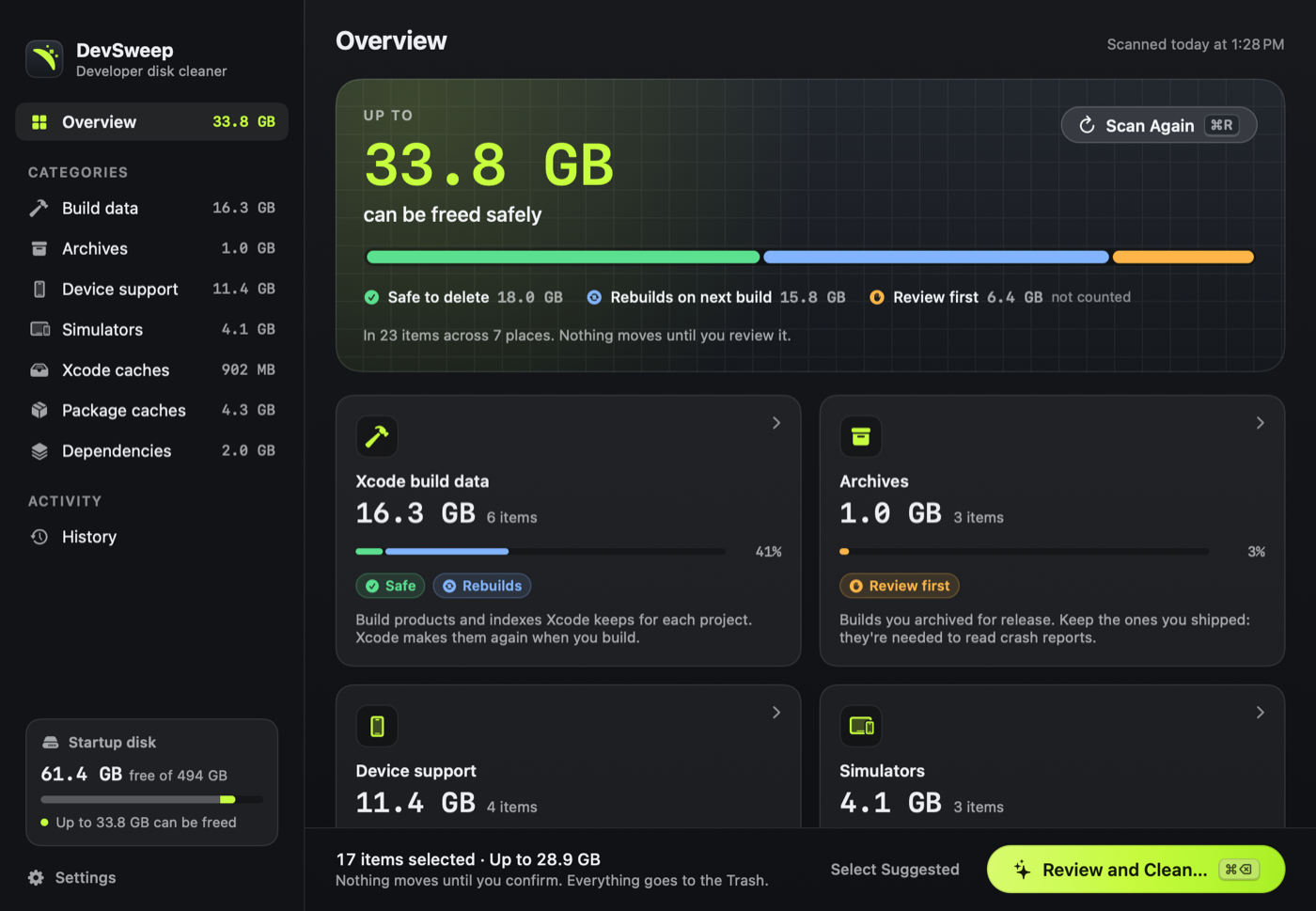
The DevSweep overview: up to 33.8 GB can be freed safely, split into safe to delete, rebuilds on next build and review first, with a card for each place. The DevSweep overview: up to 33.8 GB can be freed safely, split into safe to delete, rebuilds on next build and review first, with a card for each place.

Every item explained.In plain words.

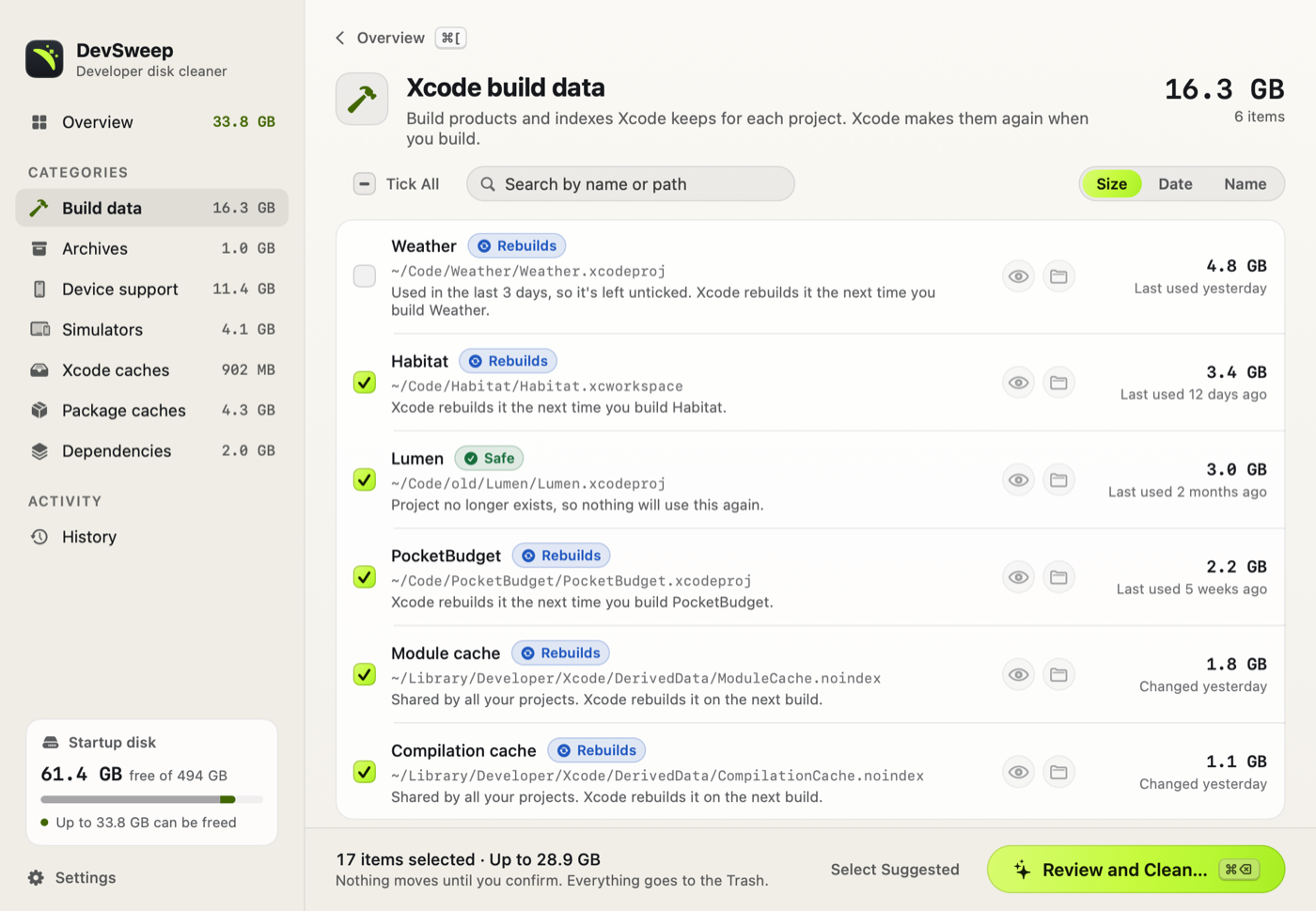
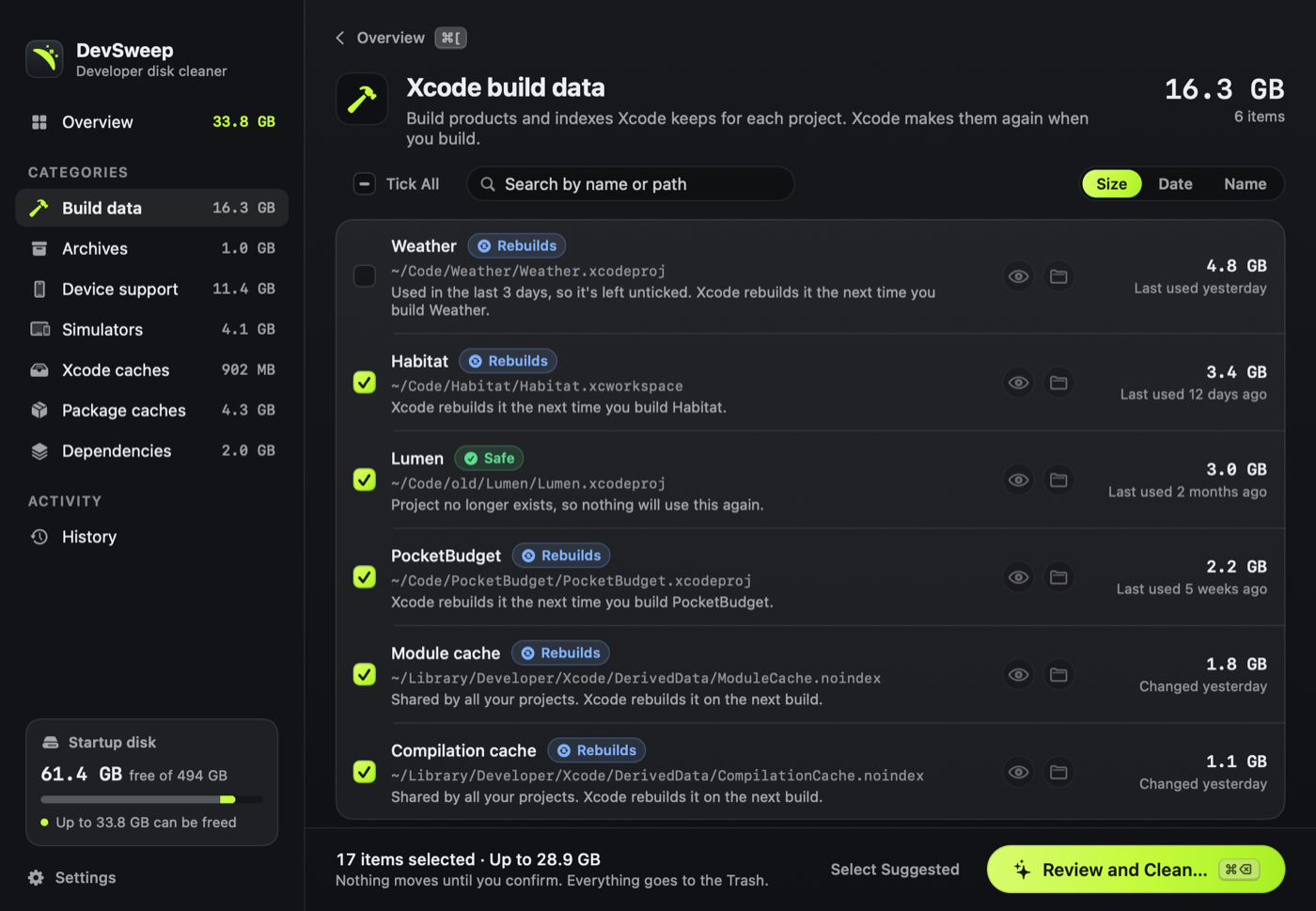
Each folder shows what it belongs to, when it was last used and what removing it means, with Quick Look and Reveal in Finder one click away. Build data from a project you opened in the last three days starts unticked.

The Xcode build data list: Weather, used in the last 3 days and left unticked; Habitat; Lumen, whose project no longer exists; with sizes and last-used dates. The Xcode build data list: Weather, used in the last 3 days and left unticked; Habitat; Lumen, whose project no longer exists; with sizes and last-used dates.

One last look.Then the Trash.

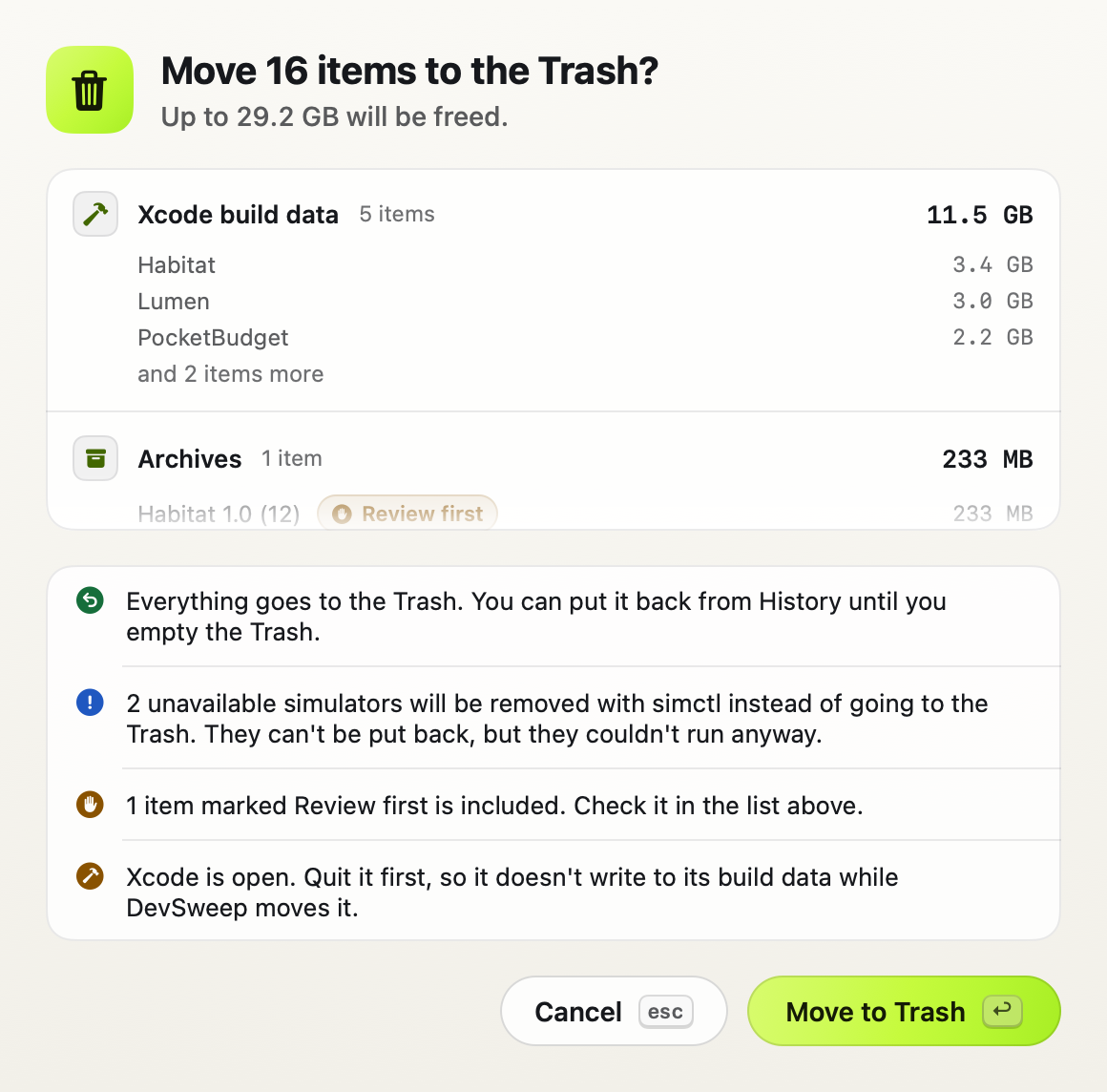
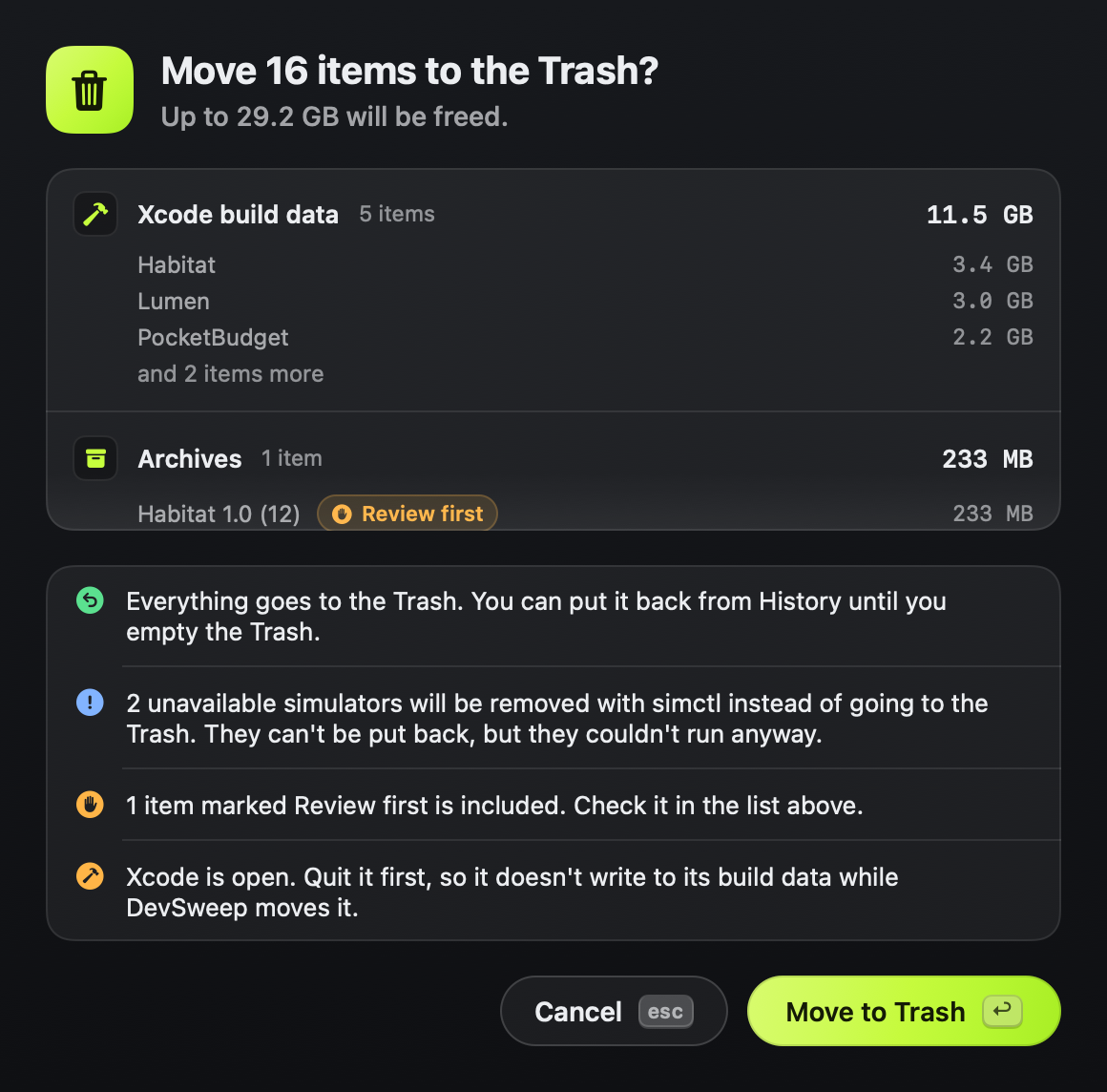
Before anything moves, DevSweep lists what's going, how much it frees, and anything you should know, such as Xcode still being open or a simulator that can't come back.

The confirmation: Move 16 items to the Trash? Up to 29.2 GB will be freed, with each group listed and notes about the Trash, simulators and Xcode being open. The confirmation: Move 16 items to the Trash? Up to 29.2 GB will be freed, with each group listed and notes about the Trash, simulators and Xcode being open.

Changed your mind?Undo.

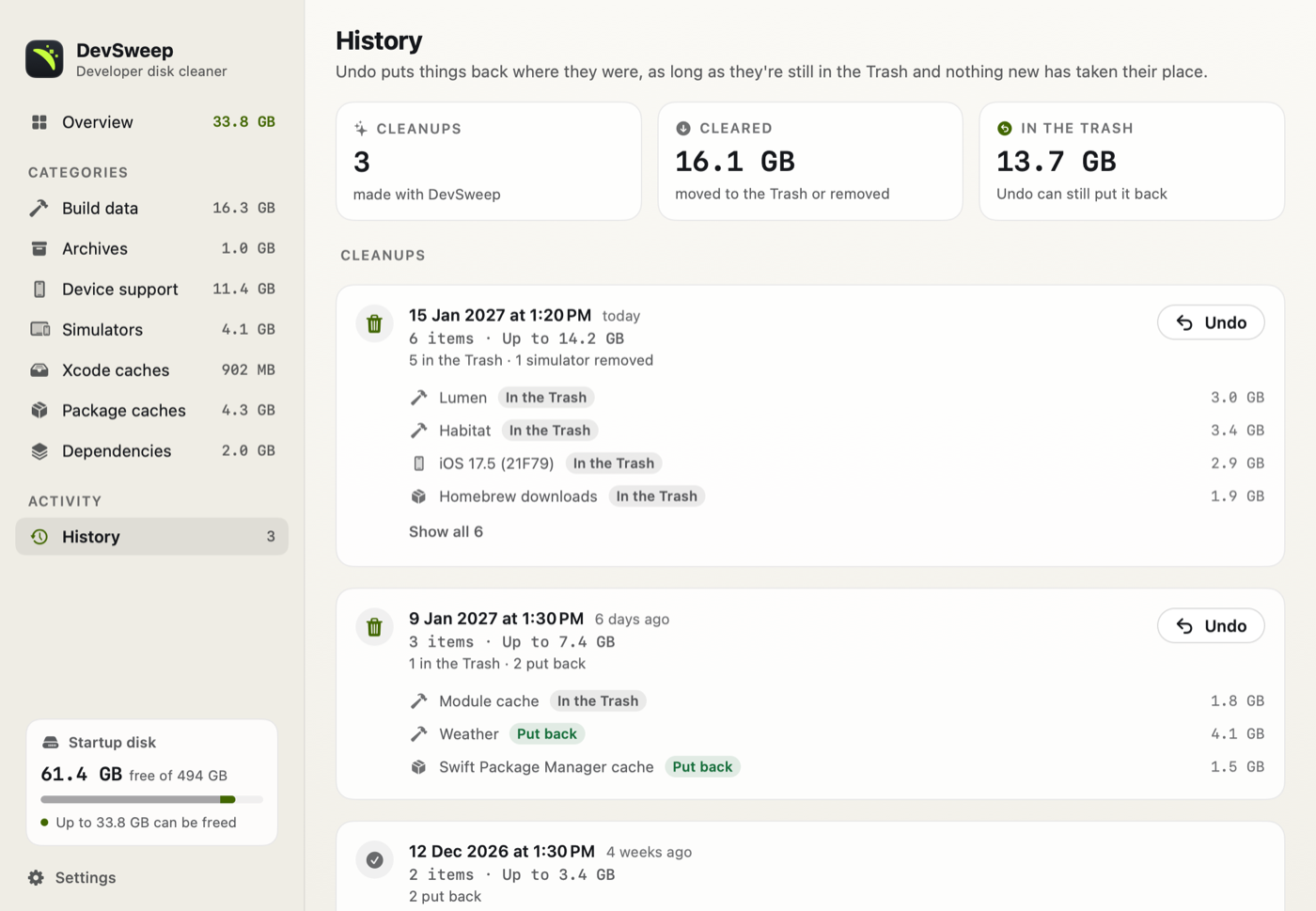
History keeps every cleanup with what went and how big it was. Undo puts items back where they were, as long as they're still in the Trash and nothing new has taken their place. Removed simulators are the one thing that can't come back, and DevSweep says so before you start.

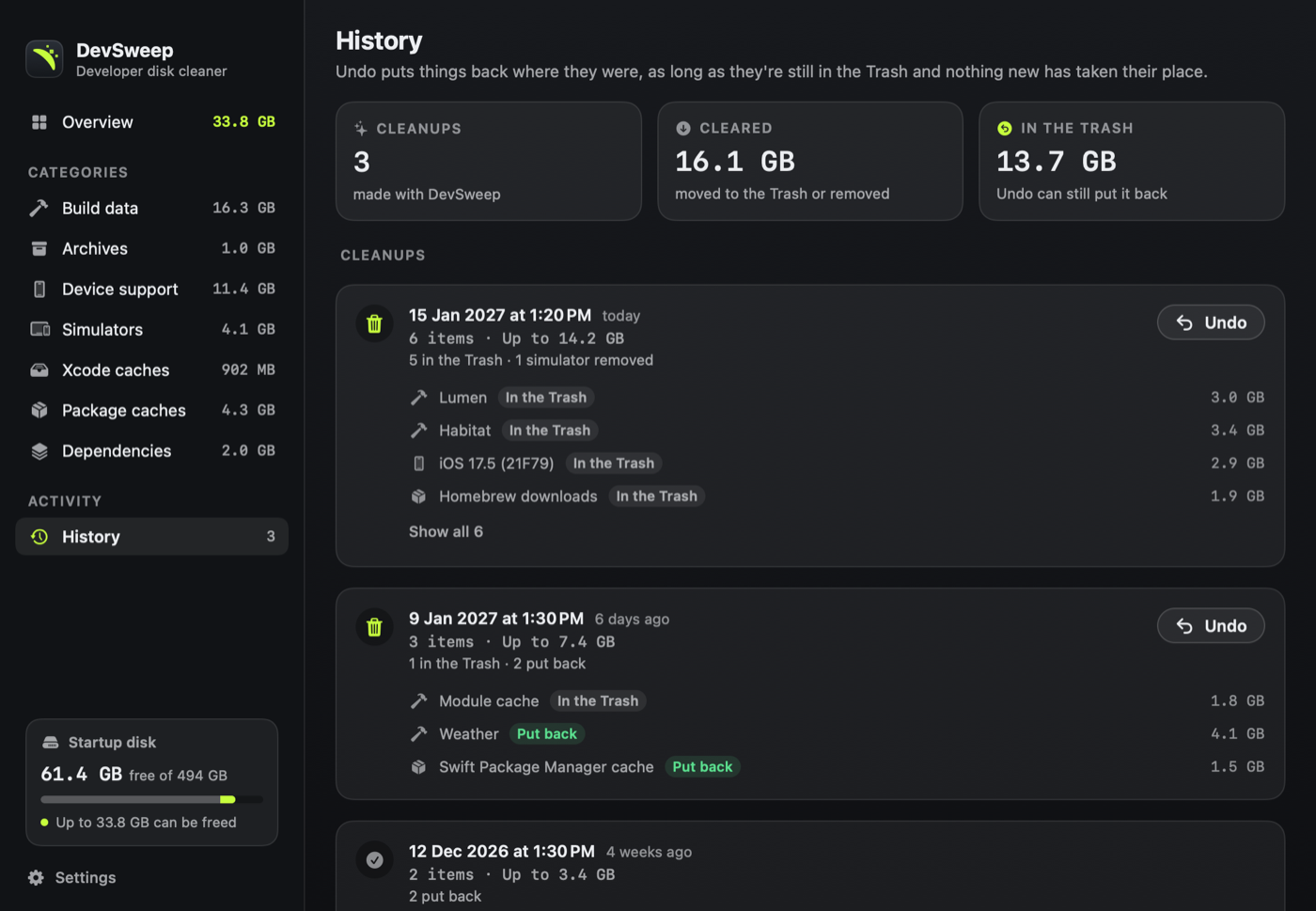
The History screen: three cleanups with their dates, sizes and items, each marked In the Trash or Put back, with an Undo button on the ones that can still be undone. The History screen: three cleanups with their dates, sizes and items, each marked In the Trash or Put back, with an Undo button on the ones that can still be undone.

What it cleans

Only the placesdev tools fill up.

DevSweep looks in a short, fixed list of folders that Xcode and package managers rebuild or download again. Your projects, your source code and the rest of your Mac are not part of the scan.

  • Never your source code
  • SwiftPM settings left alone
  • node_modules only where you say
  • Archives never pre-ticked
~/Library
  • Developer/Xcode/DerivedDataRebuilds
  • Developer/Xcode/iOS DeviceSupportolder versionsSafe
  • Developer/CoreSimulator/Devicesunavailable onlySafe
  • Caches/com.apple.dt.XcodeSafe
  • Caches/org.swift.swiftpmRebuilds
  • Caches/CocoaPodsRebuilds
  • Caches/HomebrewdownloadsSafe
  • Developer/Xcode/ArchivesReview first
  • node_modulesonly in project folders you chooseSafe

A cleaner you cantake back.

Deleting the wrong folder costs more than the space it frees. So DevSweep never deletes on its own.

The Trash, not a shredder

Everything you clean goes to the Trash. History lists each cleanup, and Undo puts the items back where they were, as long as they're still in the Trash.

Checked again before it moves

Right before cleaning, DevSweep checks each item again: still there, still inside its folder, not a link to somewhere else, and the same folder it scanned. Anything that fails stays where it is.

“Review first” means it

Archives you may need for crash reports, and the newest device support for each platform, are listed but never ticked for you, and never counted in the headline.

Nothing behind your back

DevSweep only looks until you say otherwise. There's no automatic cleaning: nothing moves until you've seen the list and pressed the button.

Early birds pay less.Everyone pays once.

The price goes up in two steps as more people buy. Whatever you pay, DevSweep is yours for good.

  1. Early bird · $5.99 First 100 buyers
  2. Special offer · $7.99 next 100
  3. Then · $11.99 after that

DevSweep for Mac

$5.99Early bird, USD
One-time purchase

  • Every feature included
  • No subscription
  • Licence key by email
  • No account needed
Get DevSweep for $5.99

Pay once. No subscription. Price in USD, before tax.

Requires macOS 14 or later.

  1. Pay onceA secure checkout by card or wallet. Tax is worked out for you.
  2. Check your emailYour licence key and the download arrive straight away.
  3. Paste the keyOpen DevSweep, enter the key, and it's unlocked.

Fair questions.Straight answers.

What it removes, what it leaves alone, and what it costs.

What it cleans

What does DevSweep delete?

Only what you tick, and it moves it to the Trash rather than deleting it. It looks at Xcode's build data (DerivedData), archives, device support files, unavailable simulators, Xcode's caches, the download caches of Swift Package Manager, CocoaPods, Carthage and Homebrew, and old node_modules folders in project folders you choose.

What does it never touch?

Your projects and source code, anything outside the places it lists, and the parts of Swift Package Manager's folders that hold your settings and security data. It doesn't follow links out of a folder, and it looks in Desktop, Documents or Downloads only if you choose a project folder there yourself.

Will my projects still build?

Yes. Build data and package caches are marked “Rebuilds on next build”: Xcode and your package manager make them again, so the first build afterwards takes longer. Build data for a project you used in the last three days starts unticked, so the project you're working on isn't rebuilt by surprise.

What about archives and crash reports?

An archive holds the symbols needed to read crash reports from the version you shipped. That's why every archive is marked “Review first”, never ticked for you and never counted in the headline. Keep the ones for versions people still use.

Which simulators does it remove?

Only unavailable ones: simulators whose iOS, watchOS, tvOS or visionOS runtime is no longer installed, so they can't run. They're removed with simctl, Xcode's own tool, which means they can't be put back, and the confirmation says so before you agree. It also offers the simulator caches, which go to the Trash.

How does it handle node_modules?

It looks only inside the project folders you add in Settings, and only lists a project's dependencies once the project hasn't changed for 30 days, which you can change. It never looks inside node_modules itself. Each one comes back with npm install or your package manager's equivalent. CocoaPods Pods and Swift .build folders can be included too.

Safety

Why the Trash, and how does Undo work?

So that nothing is lost by mistake. History keeps a list of every cleanup, and Undo puts its items back where they were, as long as they're still in the Trash and nothing new has taken their place. The space is really free once you empty the Trash.

Does it need Full Disk Access?

No. The folders it scans are in your home folder's Library, which macOS doesn't lock, so it doesn't ask for any special permission.

Why does it say “up to”?

Sizes are what the files take up on disk. Some files share space with others, for example copies the Mac stores only once, so the space you get back can be a little less than the figure shown.

Should I quit Xcode first?

It's best to. If Xcode is open and you've ticked its build data or caches, the confirmation reminds you, so Xcode isn't writing to a folder while it moves.

Buying

What does it cost?

It's a one-time purchase, with no subscription. The price rises in steps as more people buy, and the current price is shown in the pricing section. Whatever you pay, the licence is yours for good.

How do I get the app after paying?

You get an email with your licence key and the download. Open DevSweep, paste the key, and it's unlocked.

Can I try it before buying?

There's no trial version. The film at the top of this page shows the app's own interface at work: a scan of a sample Mac, a few items ticked and unticked, the review sheet, then 14 items moved to the Trash with Undo ready to put them back.

Which Macs does it run on?

Any Mac running macOS 14 or later.

Get your disk back.
Keep your projects.

Build data, simulators, device support and caches, measured and explained, with everything you remove waiting in the Trash in case you need it.

Pay once. No subscription, no account.